
Import Your Owner Key into Anchor Wallet
- Download Anchor Wallet (desktop or mobile): https://greymass.com/anchor
- Select "XPR Network" as the primary blockchain network
- Click on Manage Wallets, then Import Account(s) and Import an existing Account
- Click on Import Manually, enter Account Name eg
safemasterand enterowneras the Permission Name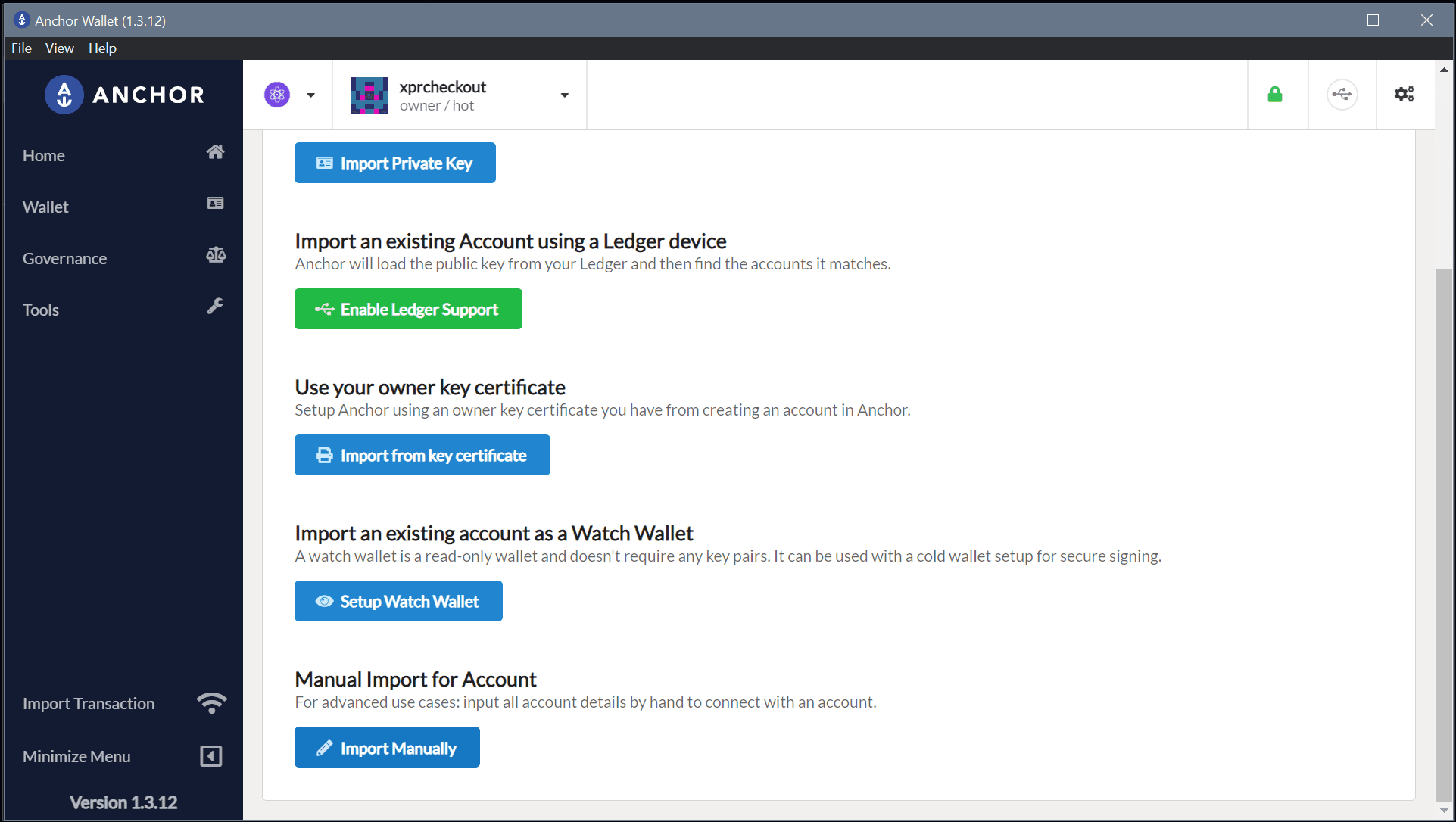
- Finally, under Private Key paste your private key associated with your current
ownerkey (from the original seed phrase, you will need to convert your seed phrase to a private key here)
If you created your account using WebAuth, your
ownerkey is derived from your original 12-word seed phrase. So you should go to the explorer https://explorer.xprnetwork.org and click on Wallet, then Utitlites, then Format Keys and in the third field paste your Mnemonic (seed phrase) and click Format.
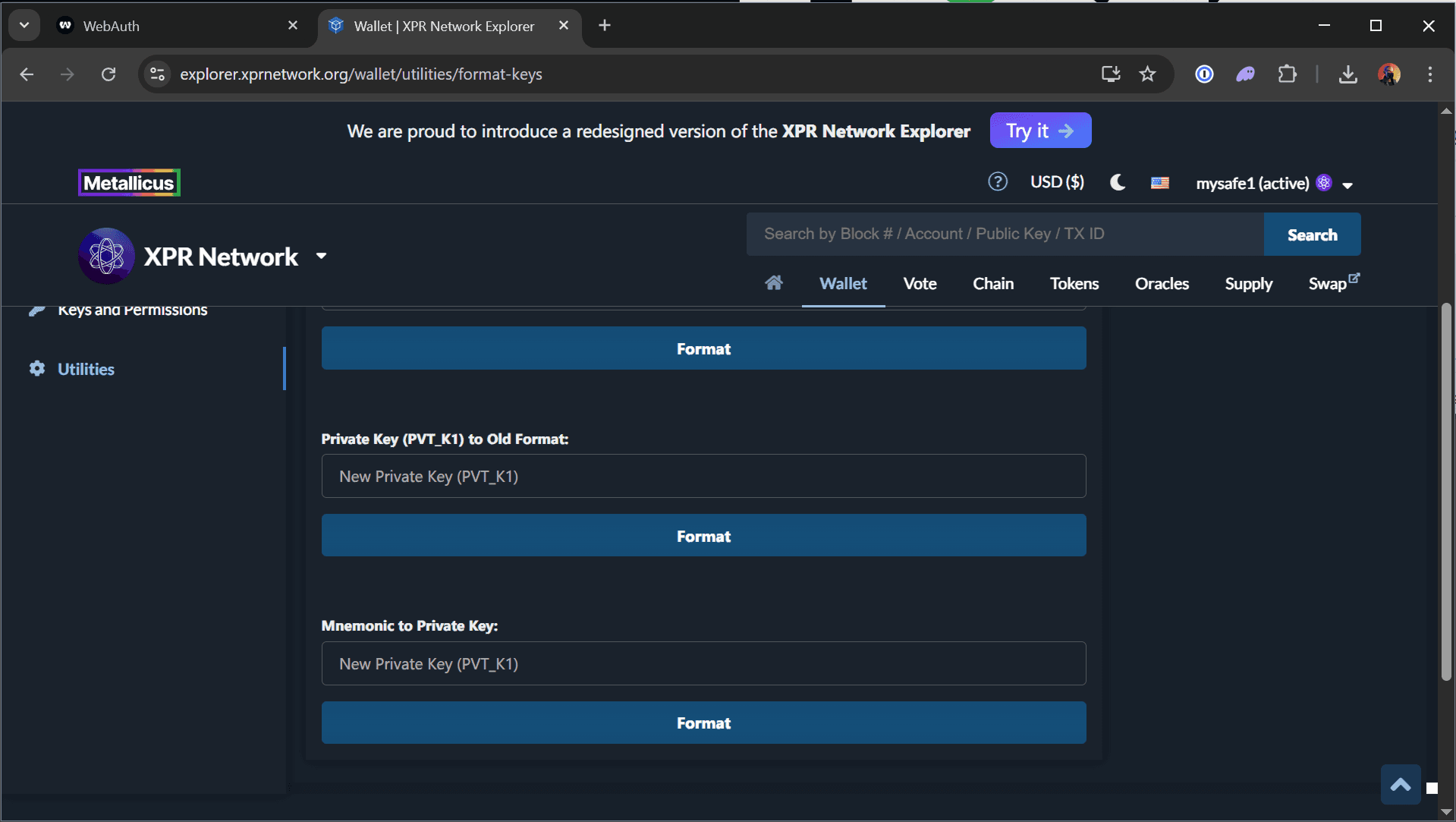
This is your private key, which has the same power as seed phrase so do NOT share it.
Use Anchor to Update the Owner Permission
Once you’re logged into Anchor with safemaster@owner, go to https://explorer.xprnetwork.org:
- Click the account dropdown (top right) and Add Account, choosing Anchor Wallet to connect to the explorer instead of WebAuth Wallet.
- Navigate to Wallet from the top menu again, then Keys and Permissions
- Click Advanced
- Edit the
ownerpermission and set the Threshold to 2 just like we did for active permission earlier - Remove the old key and add the same multisig accounts:
1 mysafe1@active1 mysafe2@active-
1 mysafe3@active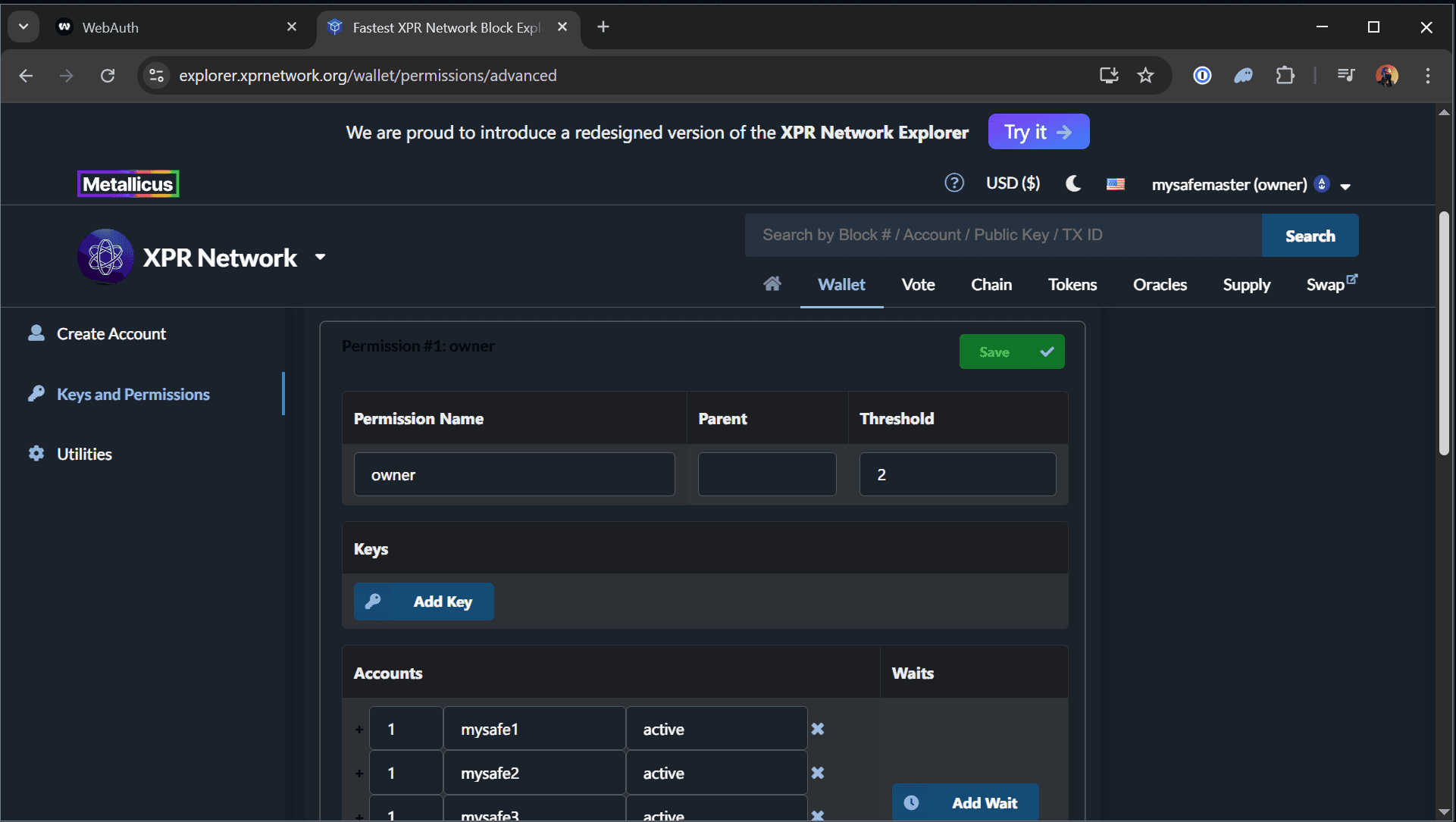
- Click Save
- Authorize the transaction; Anchor will prompt you to sign with
owner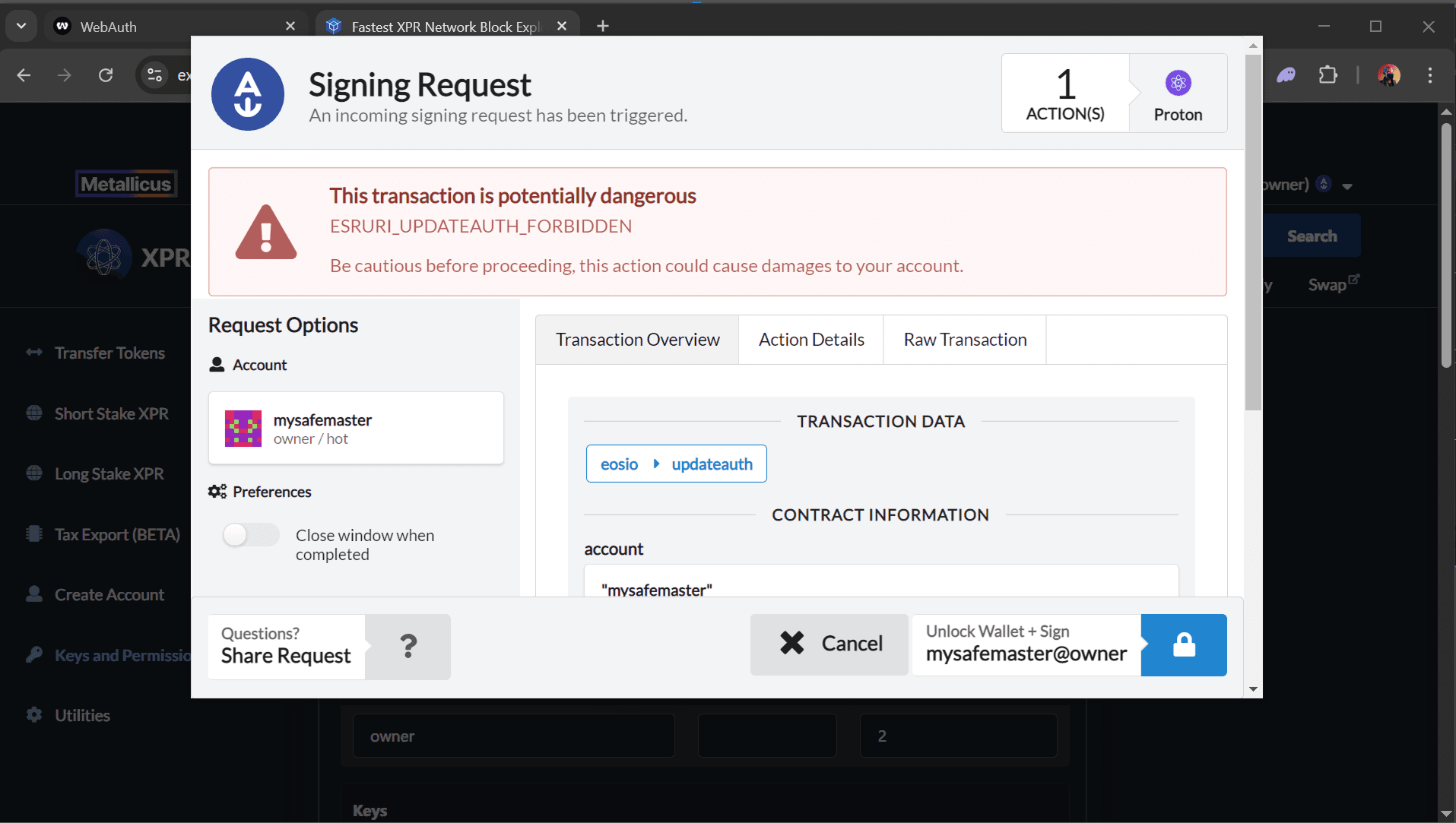
Confirm the New Owner Multisig Is Active
Once the transaction is confirmed:
- Visit your permissions page to verify the
ownerpermission now uses accounts (not keys)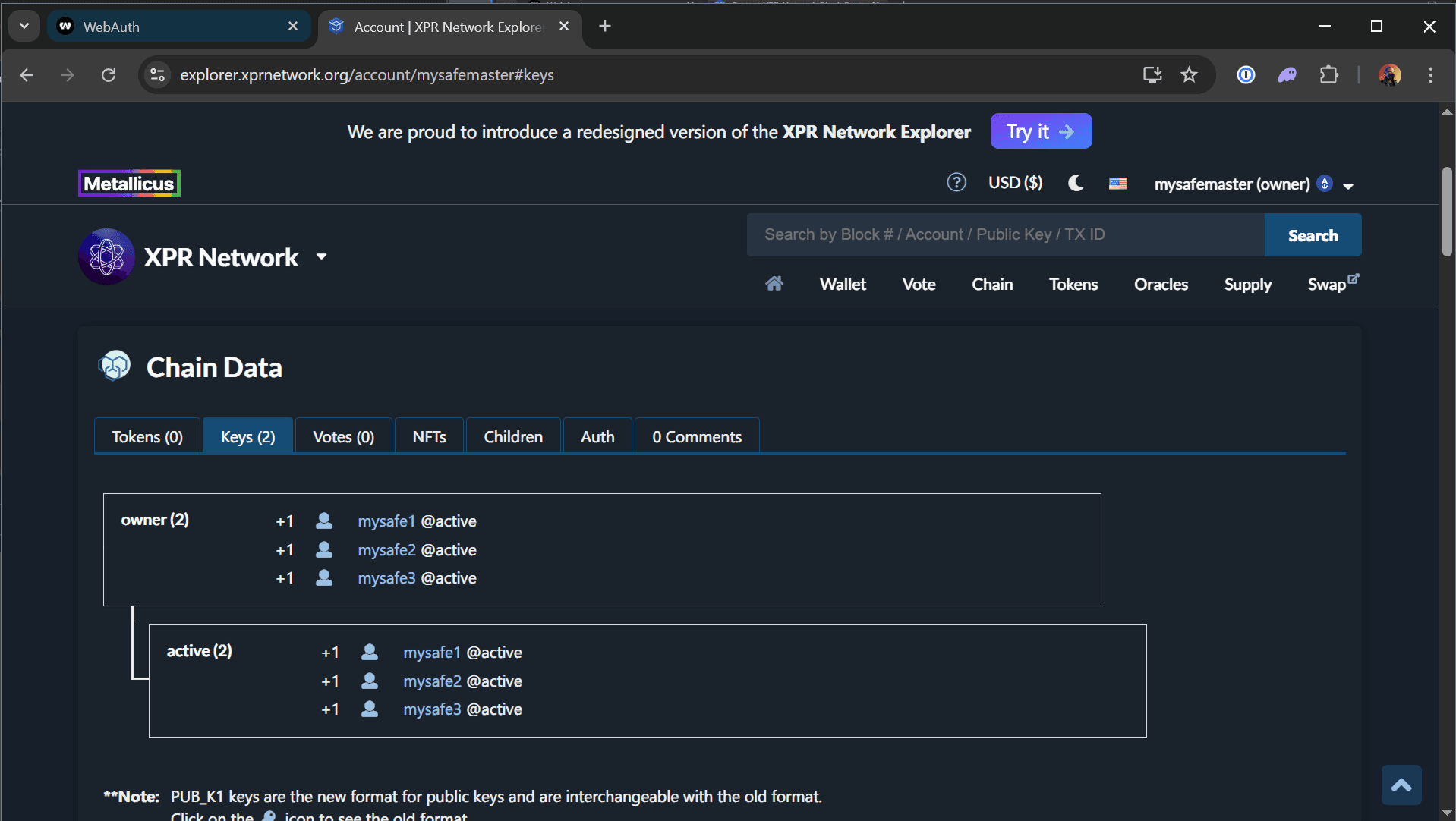
- Test proposing a transaction from
ownerto confirm it requires 2 of 3 approvals
Only proceed once you've safely tested and confirmed the change. From this point forward, your
ownerkey is obsolete and your account is fully secured by multisig.
If you have any questions about this guide or just want to say “Hi”, follow our Metallicus Client Services Help Center on X (@MetalHelpsMe) to stay up to date and learn how to get the most out of your XPR Network experience!
Comments
0 comments
Article is closed for comments.